File Updates Handbook
Effortless Manual Updates for Theme Canal Files
Theme Canal does not provide automatic updates. Instead, you keep everything current with a quick, reliable manual update flow. This guide shows you how.
Part One: Manually updating a plugin or theme
Manual updates are simple: download the new version, upload it in WordPress, confirm, and replace. Your existing settings and data stay intact.
Before you begin (recommended, not required):
- Back up your site: Always a good safety net in case something unexpected happens.
- Use staging for bigger changes: For mission-critical sites, test updates on a staging site first.
Spin up a temporary WordPress install with InstaWP and test updates there before touching your live site.
-
Download the updated file
Go to your Account Downloads area, or the product page if you’re a Pro member, and download the latest version (usually a zip file). -
Upload it in WordPress
From your WordPress dashboard: Plugins → Add New → Upload Plugin → Choose File, select the zip you downloaded, then click Install Now. -
Confirm the version
WordPress will detect that the plugin already exists and show you the current version and the new version so you can confirm you’re updating to the correct release. -
Replace the existing plugin
Click “Replace current with uploaded”. WordPress will swap the files and keep your settings, configuration, and data intact.
After the update, your plugin or theme stays configured exactly as before, but now benefits from the latest features, fixes, and security improvements.
Part Two: Requesting file updates from Theme Canal
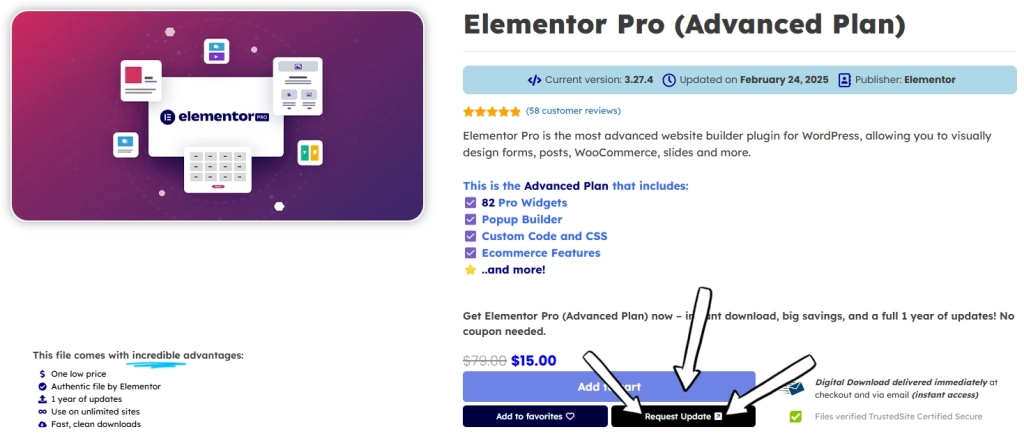
Our catalog keeps growing, and member feedback helps us prioritize what gets updated first. That’s where the “Request Update ” button comes in.
Click “Request Update ”
If you see a file behind the latest vendor version, click Request Update to add it to our update queue.
Confirmation popup
A confirmation message will appear after submission. Members can request up to 3 updates per 24 hours.
Watch “Latest Updates”
Once updated, the new version will appear in our Latest Updates section and on the product page with the updated version number.
Grab it from your account
Re-download the updated file from your Account Downloads. Pro members can also download it directly from the product page.
During busy periods we may not reply to every request individually. The Latest Updates feed and the version shown on each product page are the best places to confirm what has been updated. If something seems off, reach out via our Contact Portal.