
File Updates Handbook
Keep your files current.
A straightforward guide to updating your WordPress plugins and themes—and requesting a newer version when you need one.
Theme Canal files are updated manually in WordPress.
A little preparation goes a long way.
Make a current backup before updating. For a busy shop, client site or major version change, test on staging first. Updating replaces the product’s files, so any code edited directly inside those files can be overwritten.
Need a test environment? Try InstaWP (opens in a new tab).
Update your files.
Download the latest version from Theme Canal, then upload it to your WordPress site. There’s no need to delete the existing product first.
Download the latest version
For an individual purchase, open Account Downloads. Pro members can download directly from the product page. Check the listed version and save the installable .zip file to your computer.
Upload it in WordPress
Use the upload screen for the type of file you’re updating.
For a plugin
- Plugins
- Add New Plugin
- Upload Plugin
Choose the plugin’s .zip file, then click Install Now.
For a theme
- Appearance
- Themes
- Add New Theme
- Upload Theme
Choose the theme’s .zip file, then click Install Now.
If you use a child theme, upload the updated parent theme when that’s the file you’re updating.
Check the product and version
WordPress detects the existing installation and shows a comparison. Confirm that you’ve uploaded the correct product and the version you want to install.
Replace the existing files
Continue with the replacement option shown by WordPress:
Replace current with uploadedYour settings and content are normally retained. Direct edits to the product’s files are replaced, which is why a backup matters.
Finish with a quick check. Confirm the new version, clear your site’s cache if needed, and test the pages or features that use the updated product.
Need a newer version?
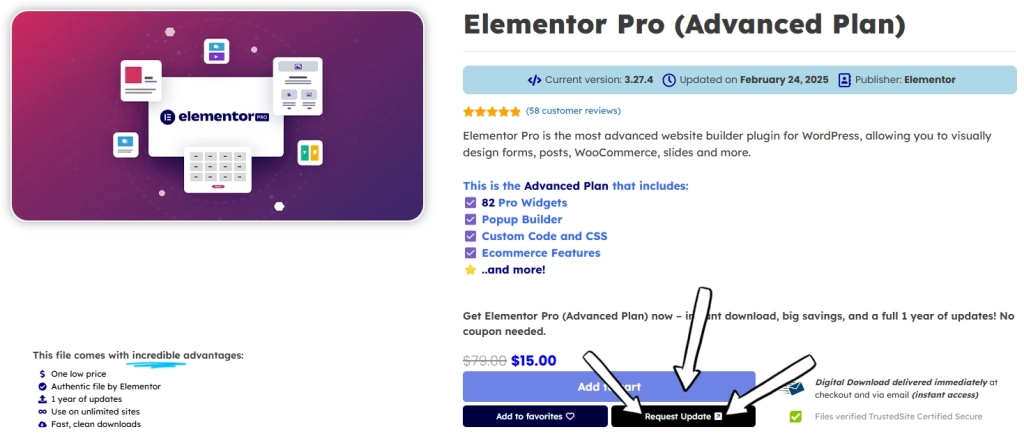
If the developer has released a newer version than the one listed on Theme Canal, send an update request from the product page.
- On the product page
Click “Request Update”
Check the listed version, then use the Request Update button to send the product to our update queue.
- After submitting
Look for confirmation
A confirmation message appears when your request has been submitted.
- Check availability
Watch Latest Updates
Once the new file is available, its version will appear on the product page and in Latest Updates.
- Back to your site
Download and install
Get the new file from Account Downloads, or the product page if you’re a Pro member. Then follow the manual update steps above.
Requests help us prioritize the queue. During busy periods, we may not reply individually; the product’s version number and Latest Updates are the best places to check availability.
If you get stuck.
A few quick things to check before trying again.
WordPress won’t accept the ZIP
Check that you’re uploading a plugin through Plugins, or a theme through Appearance. If the download contains documentation and other ZIPs, locate the installable product ZIP inside.
The download shows an older version
Compare the version on Theme Canal’s product page with the developer’s release. If ours is behind, use Request Update on that product page.
Something changes after updating
Clear your cache and test again. If the issue remains, restore your backup or review it on staging. When contacting us about a file, include the product name, version and exact error message.
Still need a hand?
Send the details through the Contact Portal so we can take a look.